

INTRODUCING A NEW CLIENT FEATURE FOR BOOKING
The Waitlist
You can now join the Vagaro Waitlist to receive text and email notifications when last-minute appointments become available
The Waitlist – accessible within Vagaro’s normal booking process – will make getting last-minute appointments simpler.
When you go to Vagaro to a book a service, you will see the option to ‘Add to Waitlist’. You can select up-to five dates and multiple times you are available to attend last-minute appointments, as they become available.
When an appointment becomes available during one of the dates and times you selected, you will receive a notification with a link allowing you to book. You will click on the link to book via Vagaro.
Vagaro will auto-fill with your selected service and the newly opened appointment date and time. Whoever books first will receive the appointment.
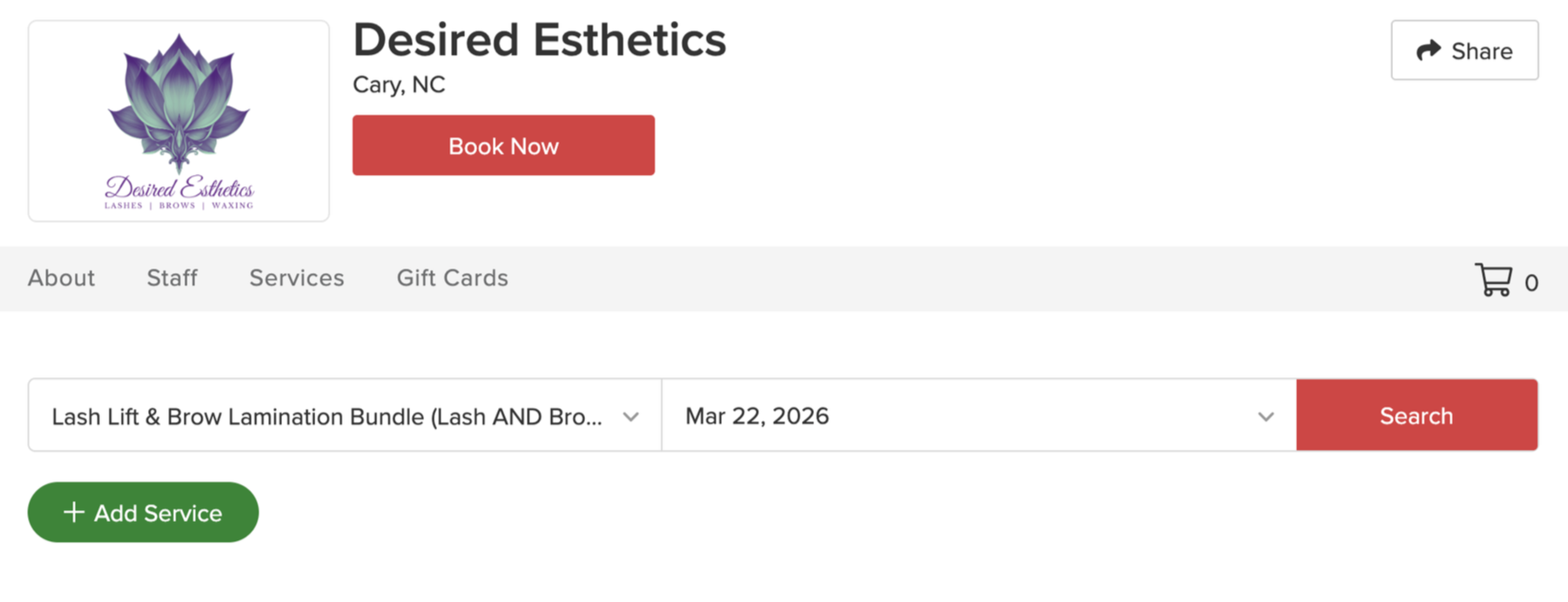
Step One: Begin Booking Your Service
You’ll begin within the normal booking process via Vagaro – selecting the service you would like to book and searching for an available date.
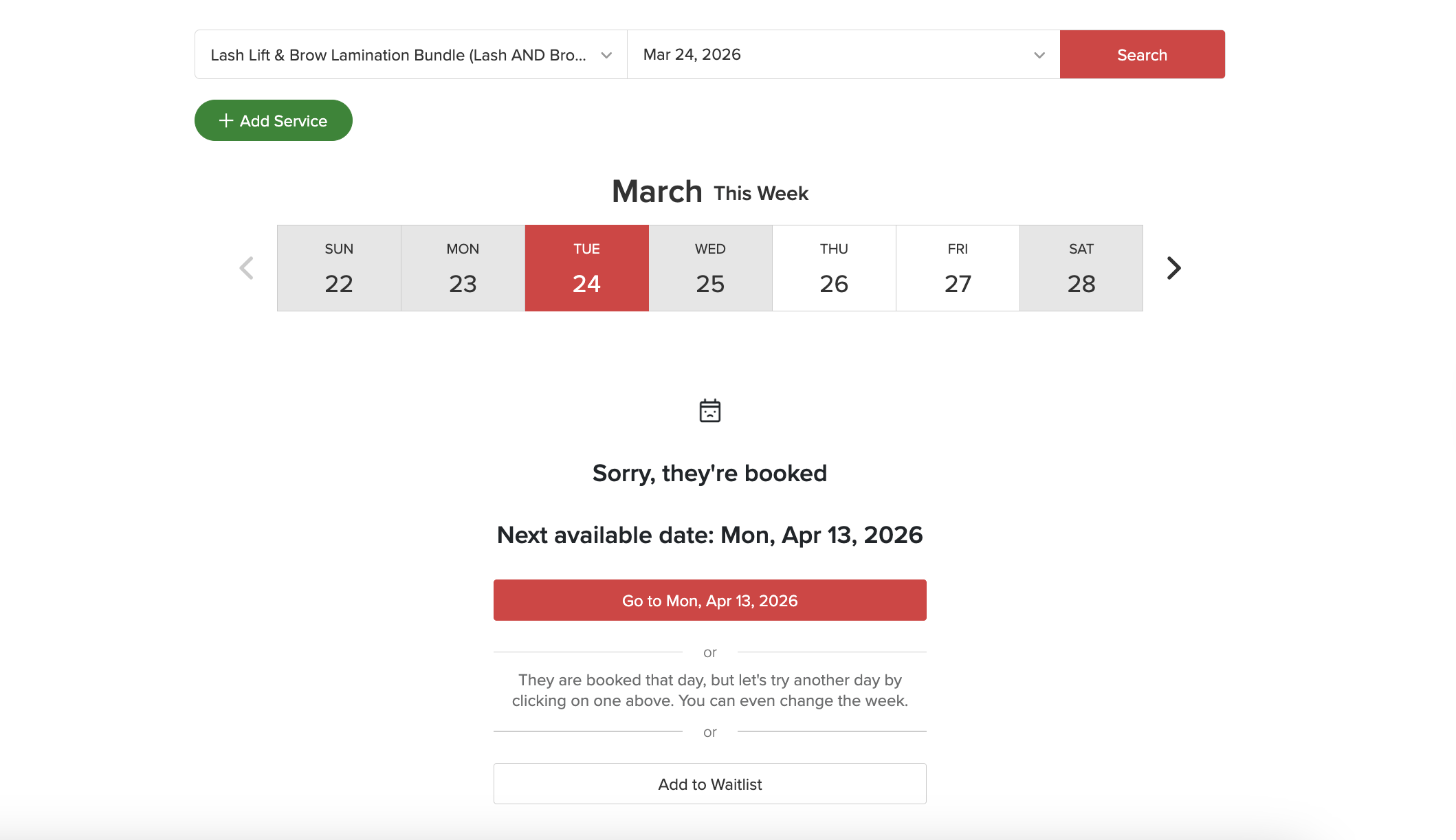
Step Two: Click the ‘Add to Waitlist’ Button
After you hit ‘Search’, the next available appointment date will appear. Below that, you will see the button to ‘Add to Waitlist’. Click to proceed to adding your Waitlist availability.
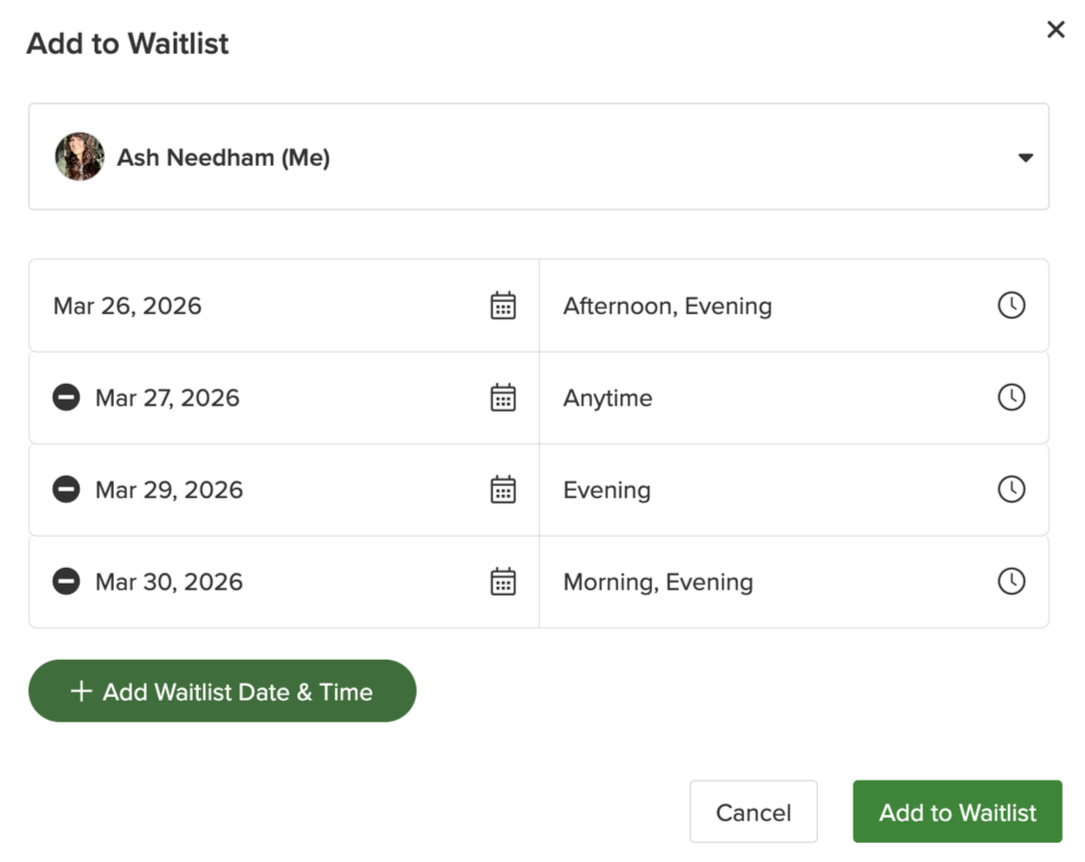
Step Three: Add Specific Dates & Times You are Available for a Last-minute Appointment
A pop-up box will appear allowing you to add specific – and multiple – dates and times you want to be included on the Waitlist. This does not confirm an appointment, if one becomes available, but it allows you to receive priority notification to book. Once your list is complete, click ‘Add to Waitlist’ to secure notifications for those dates and times.
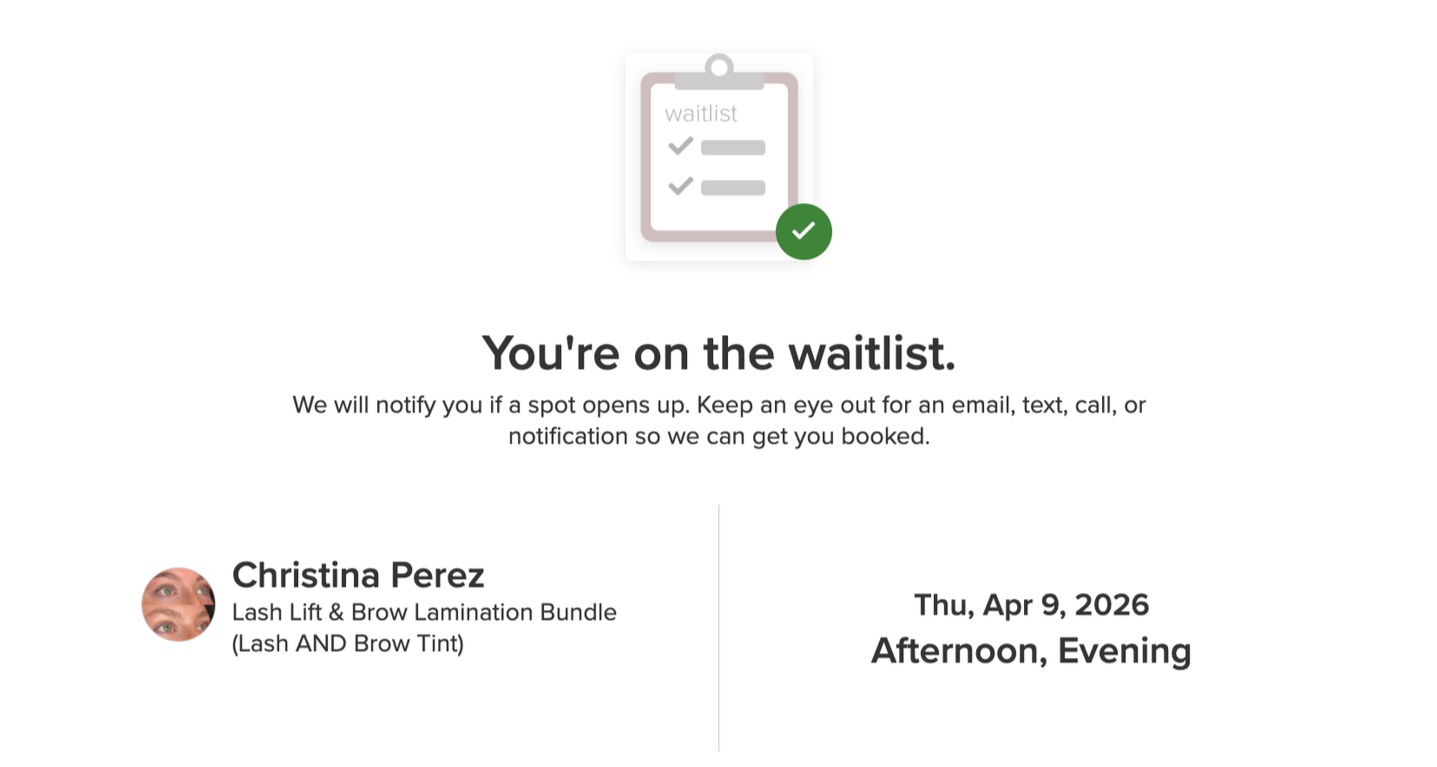
You are officially added to the Waitlist. How can you see or amend your Waitlist dates and times?
A confirmation page will appear after you click ‘Add to Waitlist’. However, you will not receive a confirmation email. You will only receive an email, if an appointment becomes available during one of your selected times.
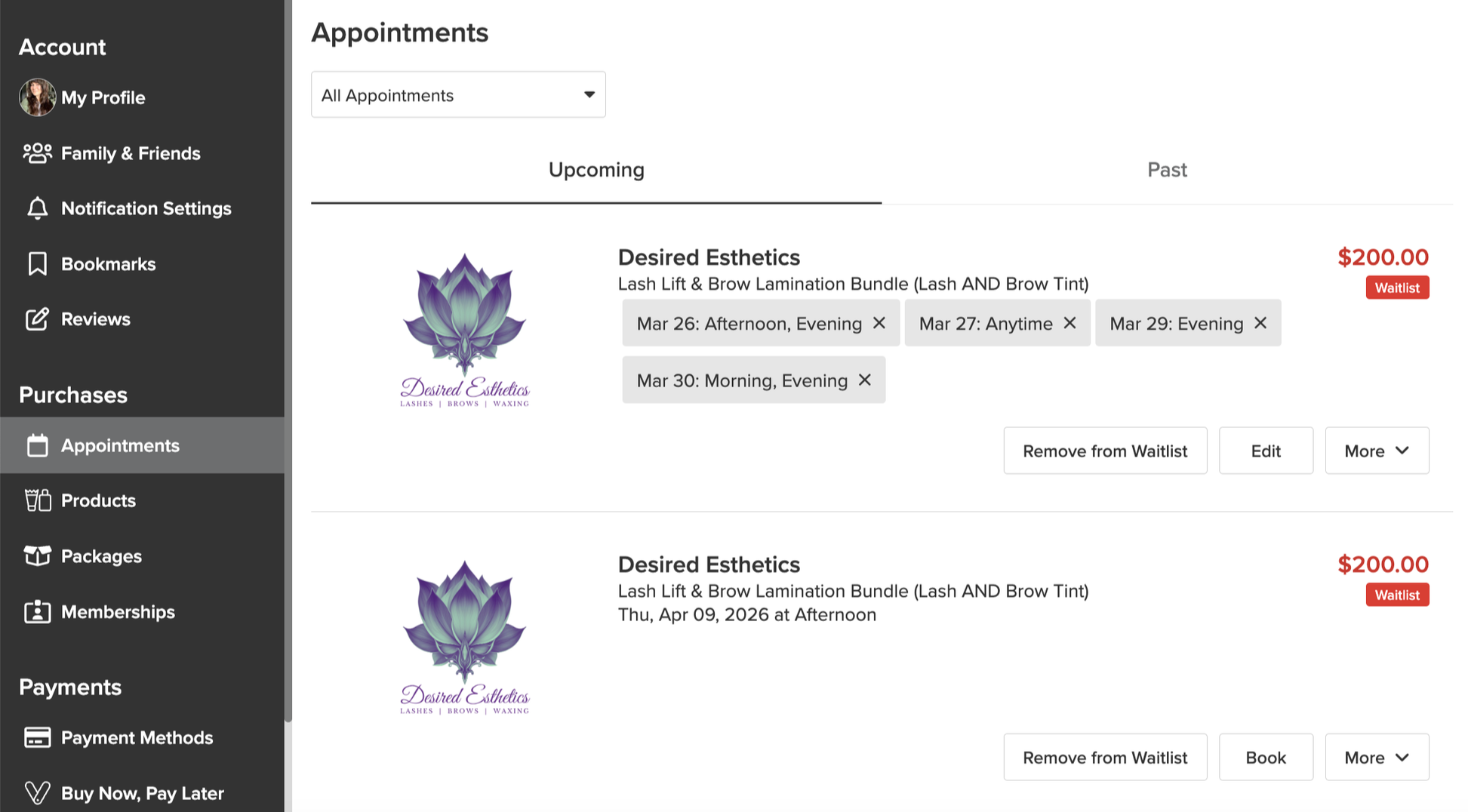
You can view and edit all of your Waitlist dates in the ‘Appointments’ section of your Vagaro profile. This allows you to remove dates or edit times, if your schedule changes.

Step Four: Book via the Notification Link
You will receive an automated text and email when an appointment becomes available within your Waitlist window. Make sure you have your Vagaro settings set to be able to receive email and text notifications. Follow the link to book. The first person to book will receive the open appointment time.
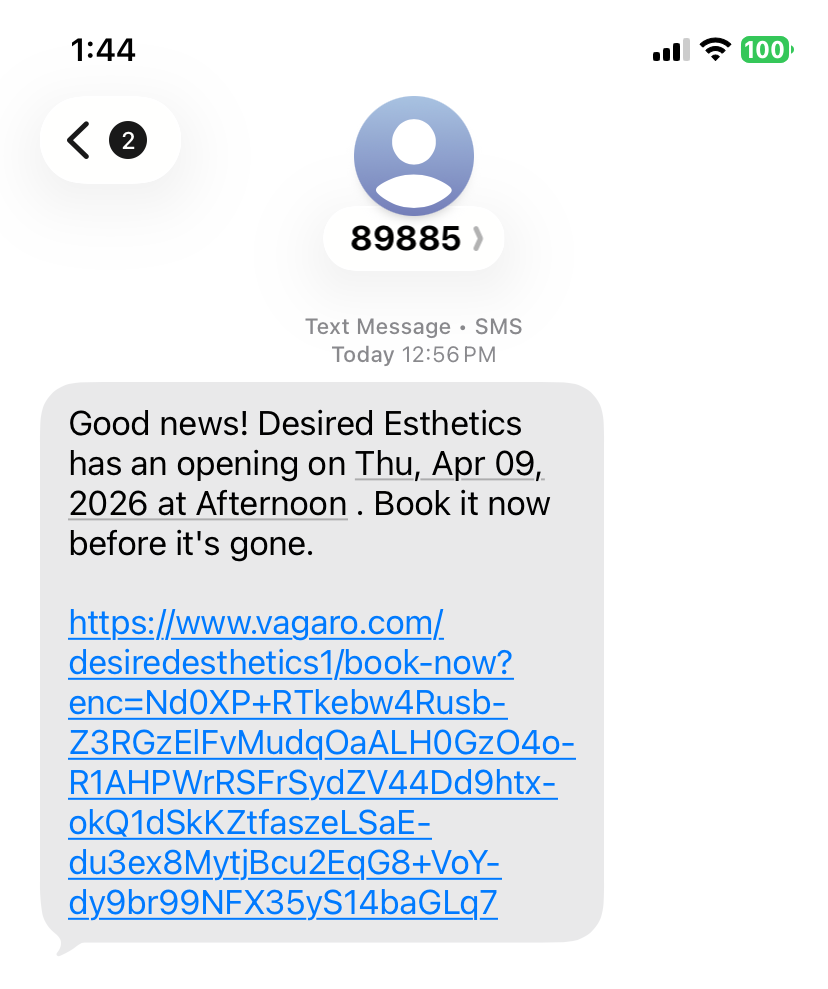
The notification will route you to Vagaro, so you must be signed in or sign in, to complete the booking process. If you have the Vagaro application on your phone and follow the text-based link, it will open the application automatically to allow you to book.